Customise the cookie banner: layout, colours and texts
Change the Omea Consent banner's position, theme, colours and texts in WordPress, with a live preview – plus how long a choice is remembered.
Everything visitors see in the banner is set under Omea Consent › Settings: the look on the Appearance tab, the words on the Texts tab. A live preview on the right shows your unsaved changes as you work.
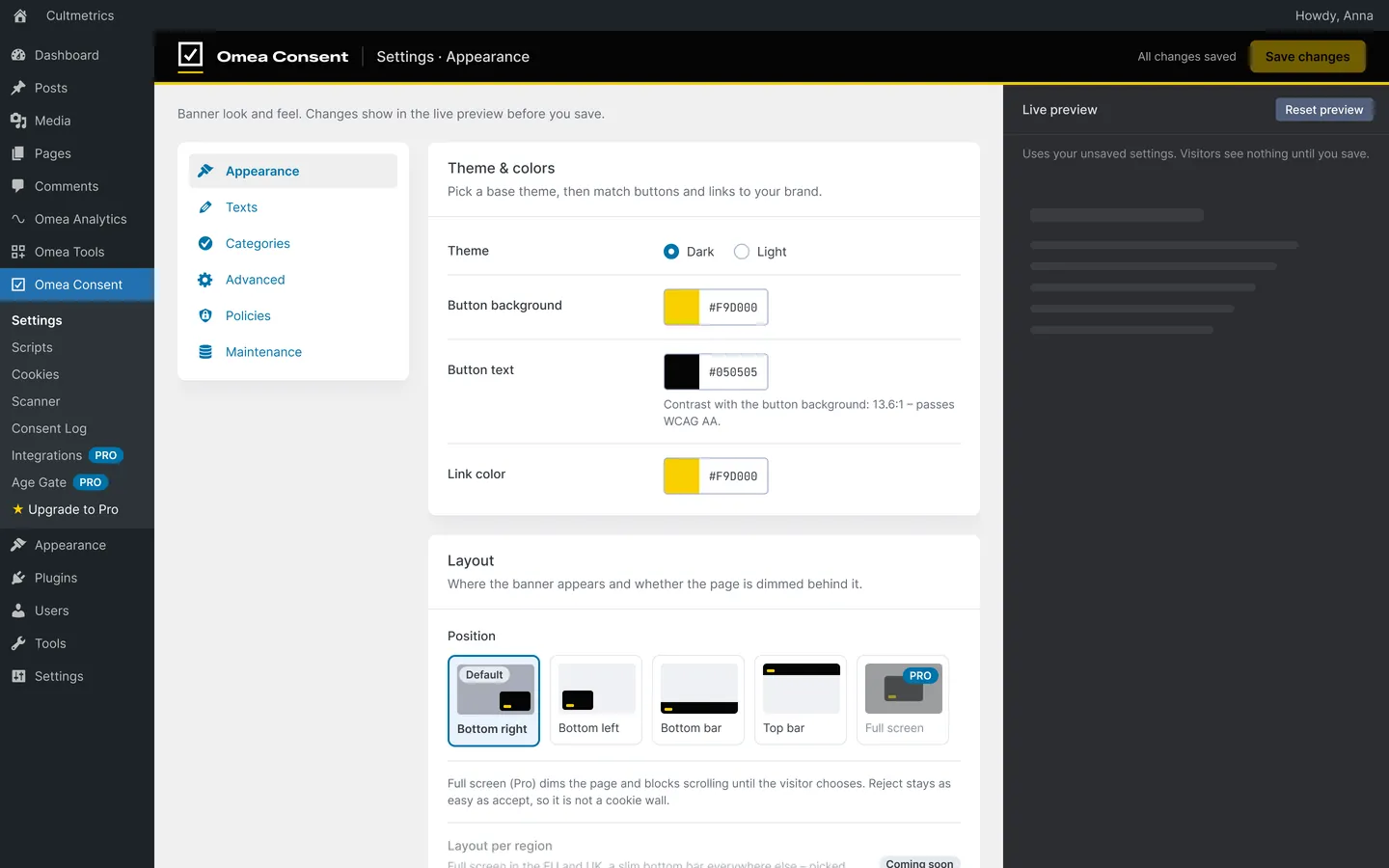
Theme and colours
In the Theme & colors card:
| Setting | Default |
|---|---|
| Theme | Dark (or Light) |
| Button background | #F9D000 |
| Button text | #050505 |
| Link color | #F9D000 |
Under the button colours a live contrast check tells you whether the text passes WCAG AA (4.5:1). If it doesn’t, pick a darker or lighter colour – a readable banner is also a fairer one.
Layout
The Layout card sets where the banner appears:
| Position | Plan |
|---|---|
| Bottom right (default) | Free |
| Bottom left | Free |
| Bottom bar | Free |
| Top bar | Free |
| Full screen – dims the page until the visitor chooses | Pro |
Custom CSS for fonts, spacing and shadows is also a Pro feature, in the same card.
Texts
On the Texts tab:
- Banner – the Message and the three buttons: Accept all, Reject all and Preferences.
- Preferences window – the Title, the Description and the Save and close button.
To link your privacy policy inside the message, type {{privacy}} – or {{privacy: Read our privacy policy}} for your own link text. The link goes to the page chosen under Settings › Policies, and appears only once that page is published.
Category names and descriptions are on the Categories tab – see Cookie consent categories explained. For other languages, see Translate your cookie banner with WPML or Polylang.
How long a choice is remembered
Under Settings › Policies, in the consent validity card:
- Remember a choice for [N] days – default 180, maximum 365. This is also the lifetime of the consent cookie.
- Ask again when categories or banner texts change – on by default.
When you change the wording of the banner, visitors are asked again so their consent matches what they saw. Details in Why the cookie banner asks visitors again.
Move settings between sites
Under Settings › Maintenance › Export & import, Export settings downloads your settings, scripts and cookie overrides as a JSON file, and Import from file… loads them on another site. Reset all settings restores the defaults while keeping your scripts, cookie overrides and the consent log.
Frequently asked questions
Can I add custom CSS to the banner?
Yes, with Omea Consent Pro: a Custom CSS field appears in the Layout card. Target #omea-consent-banner, #omea-consent-modal and #omea-consent-icon.
Can I make the banner a full-screen pop-up?
Yes, with Omea Consent Pro. The Full screen layout dims the page and blocks scrolling until the visitor chooses, while keeping Reject all as easy as Accept all – so it’s not a cookie wall.
Do visitors see my changes before I save?
No. The live preview uses your unsaved settings, but visitors see nothing until you click Save changes.